

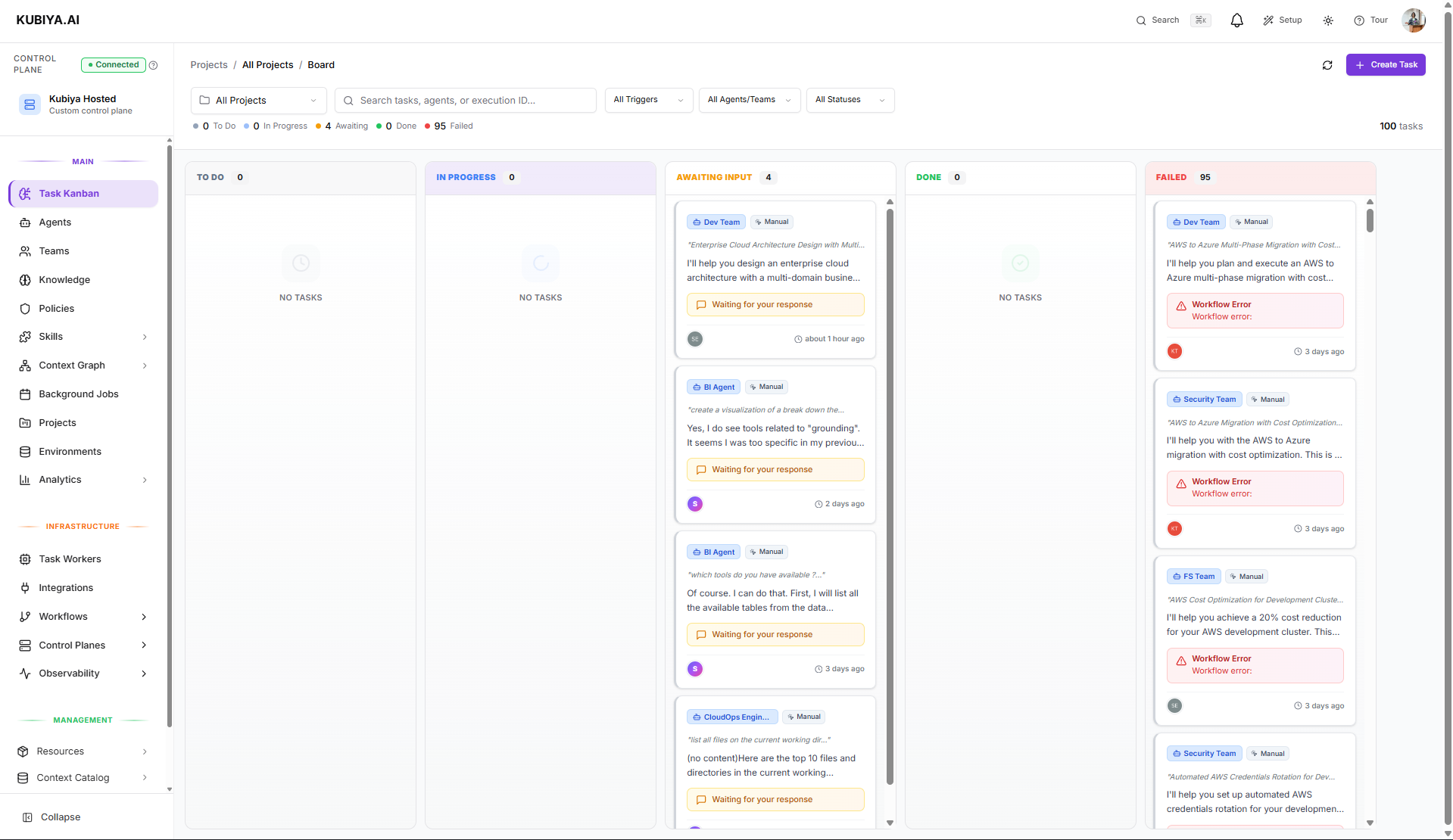
- Running executions on remote workers
- Task state (Planning, Executing, Completed, Failed)
- Agent activity and tool calls in real-time
- Execution history for audit and debugging
This is not a project management board. The Task Kanban specifically tracks agentic task executions—work performed by AI agents on remote workers through task queues. For project planning, use the Projects feature.
How Tasks Get Here
Tasks appear on the Kanban when you:
Each execution creates a durable task that persists through worker restarts and can be monitored asynchronously.
When to Use the Task Kanban
Use the Kanban when you need to:- Monitor running agent executions across workers and queues
- Track task state from pending through completion
- Debug failed executions by reviewing logs and tool calls
- Audit historical executions for compliance or troubleshooting
- Cancel or retry tasks that need intervention
Task Lifecycle
When you execute an agent (via Meta Agent, API, or SDK), the task flows through these states:Pending
Task is queued, waiting for an available worker on the target task queue.Running
A worker has picked up the task. You can see:- Real-time agent reasoning
- Tool calls being executed (Bash, API calls, etc.)
- Streaming output from the agent
Requires Input
The agent needs clarification before continuing. Respond to unblock execution.Completed
Task finished successfully. Results and artifacts are available.Failed
Task encountered an error. Review logs to diagnose:- Policy violations
- Missing prerequisites
- Tool execution errors
- Worker connectivity issues
Viewing Task Details
Click any task on the Kanban to see:Execution via Meta Agent
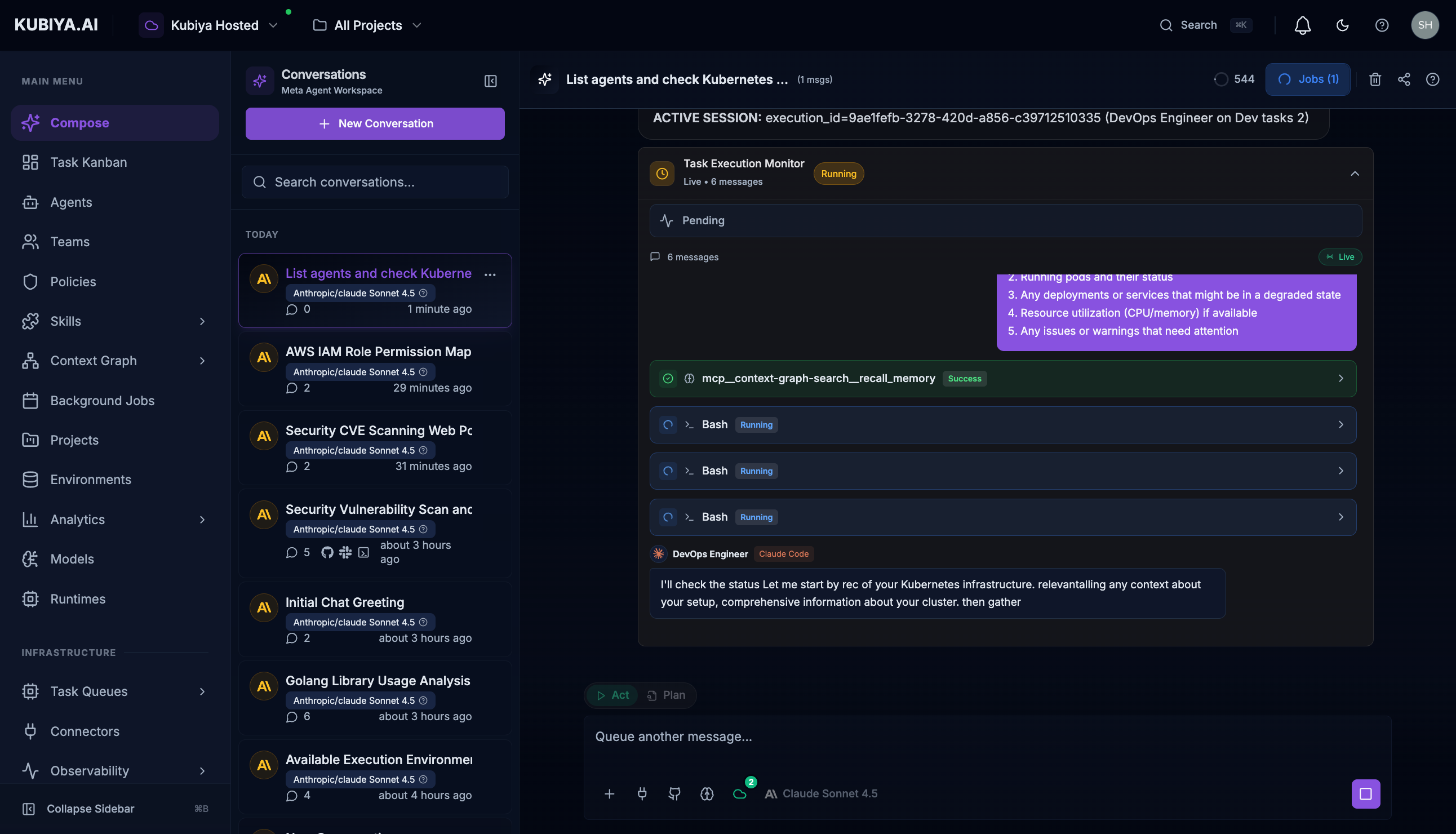
The most common way to create tasks is through the Meta Agent:- List available agents and active worker queues
- Create a durable task on the appropriate queue
- Stream execution output in real-time
- The task appears on the Kanban for tracking
Execution via SDK
For programmatic execution, use the Python SDK:agent_id- UUID of the agent to executeworker_queue_id- ID of the worker queue handling executionprompt- Instruction describing the task to perform
Execution via CLI
Execute agents directly from the command line:Managing Executions via CLI
Use the CLI to list, inspect, monitor, and control all task executions. Executions represent any task that has been approved and sent to an agent or team for processing.1. List Executions
Lists all executions with optional filters for status, agent, team, or type. Commands
Examples
2. Get Execution Details
Displays full execution metadata including plan, steps, environment, and final results. Commands3. Stream Execution Logs
Streams real-time logs and events for an active execution. Use Ctrl+C to exit log streaming. Commands4. Cancel Executions
Cancels a running execution. Kubiya attempts a graceful shutdown and halts remaining steps. CommandsBest Practices
- Describe tasks with outcomes, requirements, and constraints
- Approve plans only after reviewing steps and risk notes
- Respond promptly if agents request clarification
- Cancel tasks that hang or are no longer needed
- Use CLI streaming for debugging failing or long-running tasks
- Check policies if tasks fail unexpectedly
- Ensure active workers are connected for real-time execution